Steps | Screen shots | Description |
1 | Path: Pivotal Toolkit -> Tables -> QuickFind Create Find Now to open current design of table
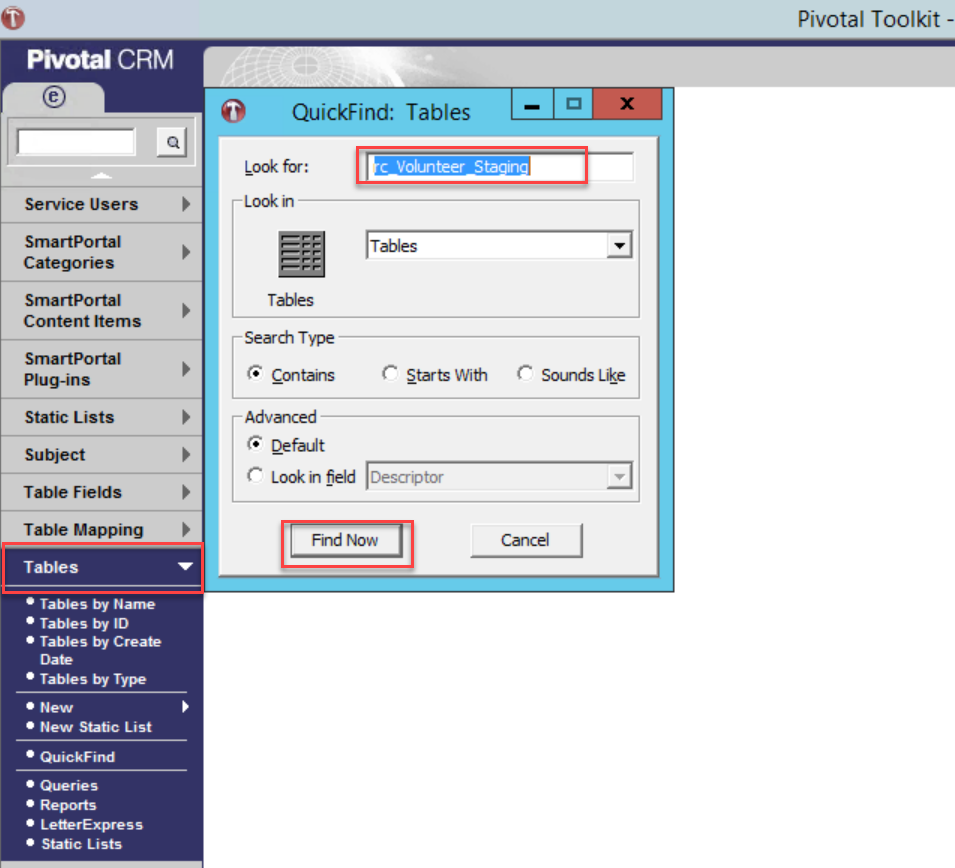
| Following the path to open table design |
2 | 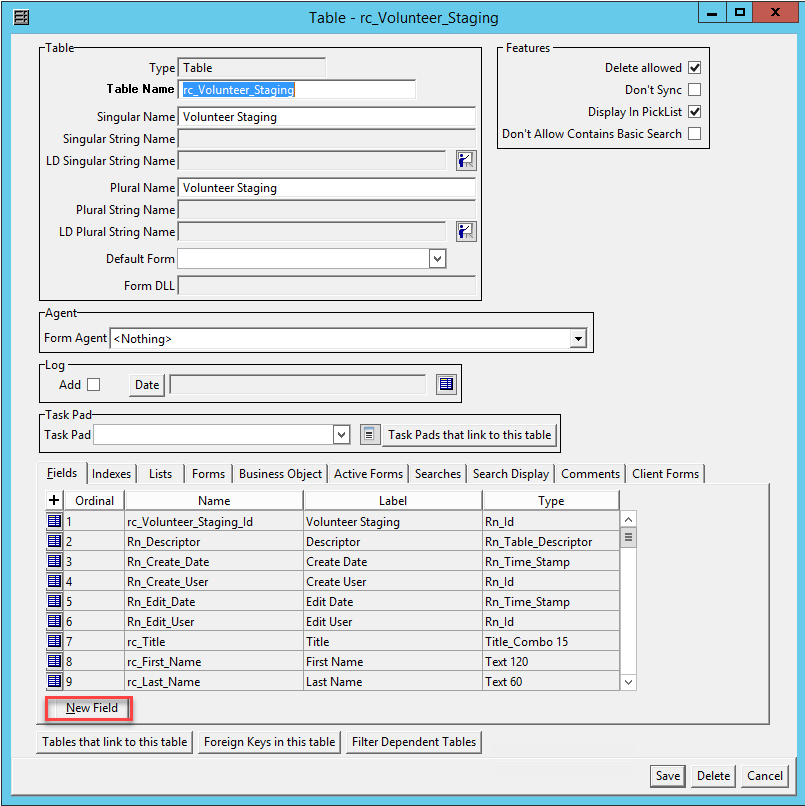
| Click new field and add new fields into table |
3 | 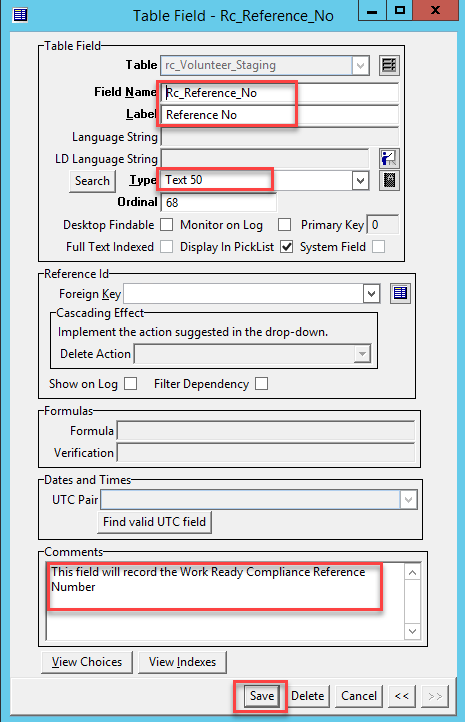
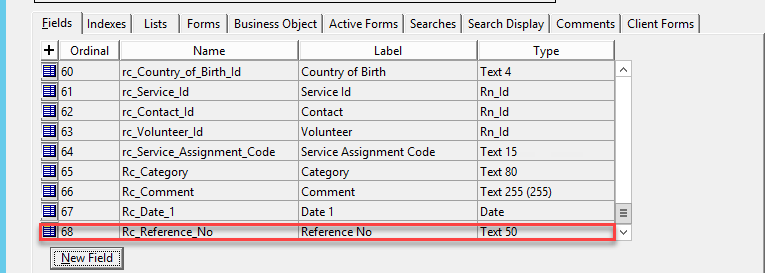
| Create new custom field. For this example, we will create a field with the type Text 50:
Rc_Reference_No. And the comments is: "This field will reocrd the Work Ready Compliance Reference Number" |
4 | 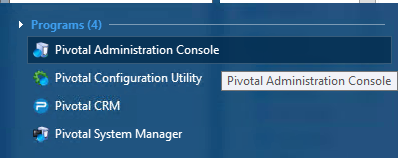
| Open Pivotal Administration Console |
5 | 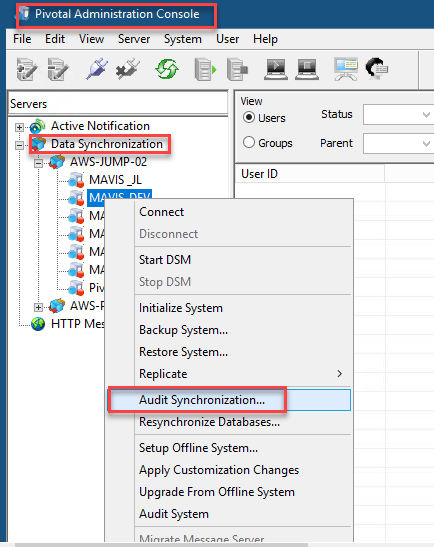
| Select Data Synchronization and select environment then right click and select Audit Synchronization |
6 | 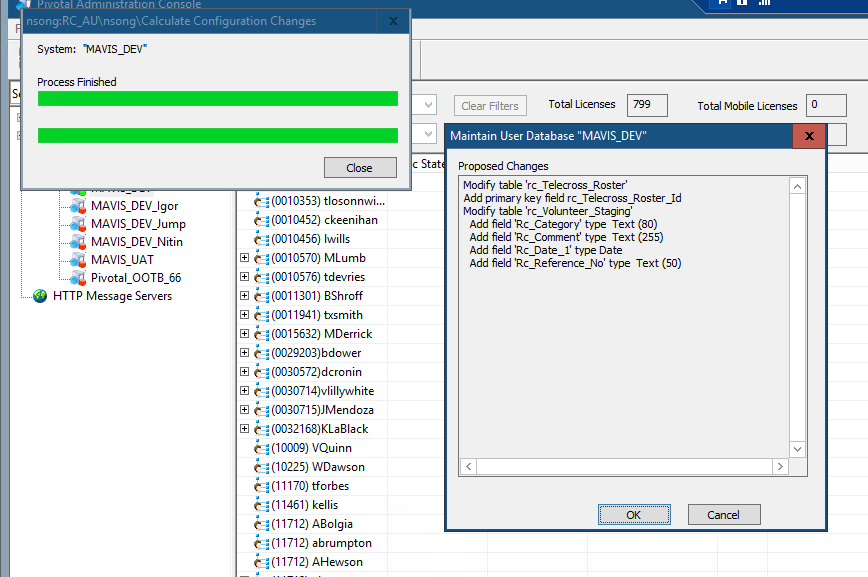
Noted: You can see some modifier from another member of the team, should contact them to make sure all change is okay.
| Click Ok to applied change and process it. |
7 | 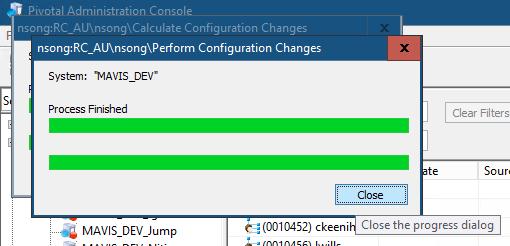
| Sync completed |
8 | 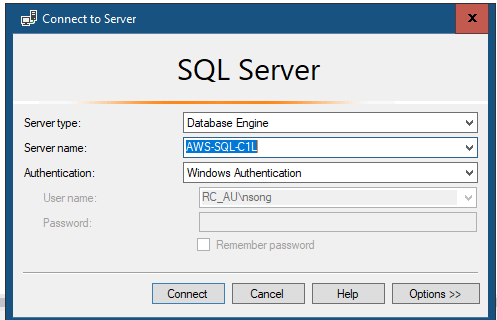
| Open Microsoft SQL Management Studio.
Connect to your database AU_DEV_ED
|
9 | 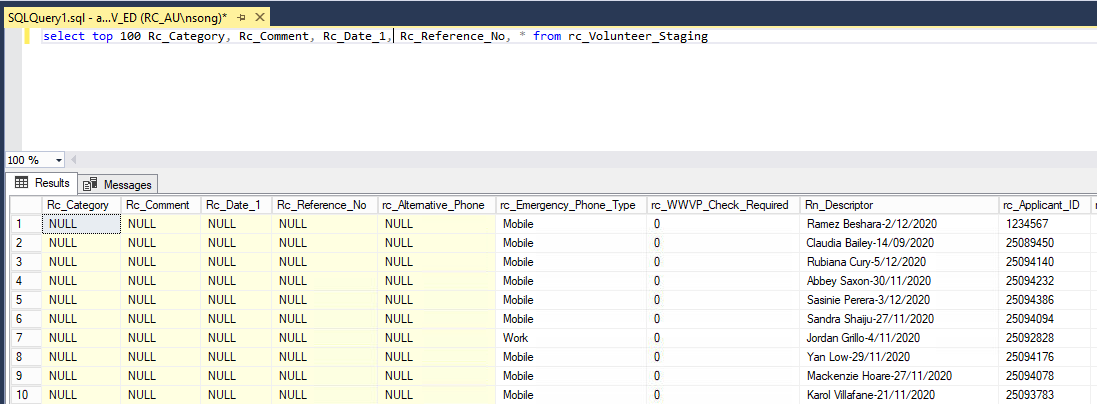
| Create new query and select table: Rc_Volunteer_Staging to see the fields created after synchronize database |
10 | Path: C:\Constants\GenerateConstants.exe
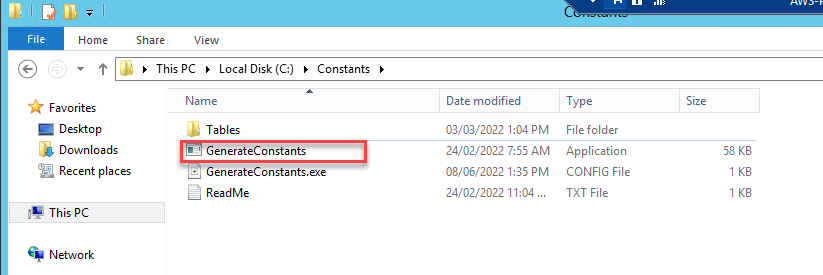
| Follow the path, and open Generate Constants by admin. We need to generate a constants table to use it for Pivotal 6.X and public new fields to API |
11 | 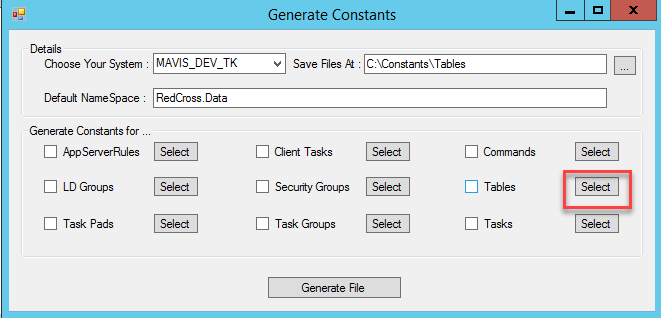
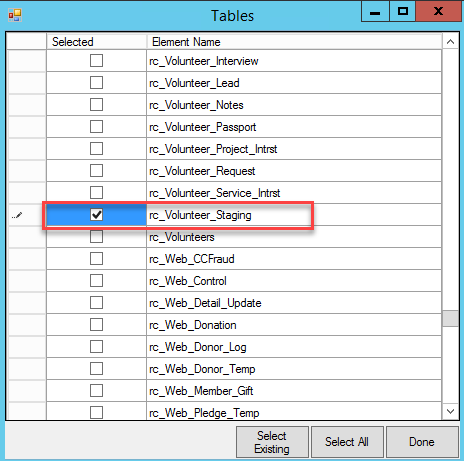
| In Generate Constants Form, in the tables, click select to open the Tables Form.
Select the table name you want to generate constant.
|
12 | 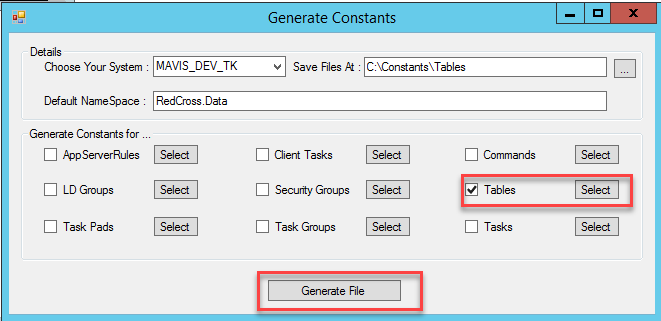
File have been generated
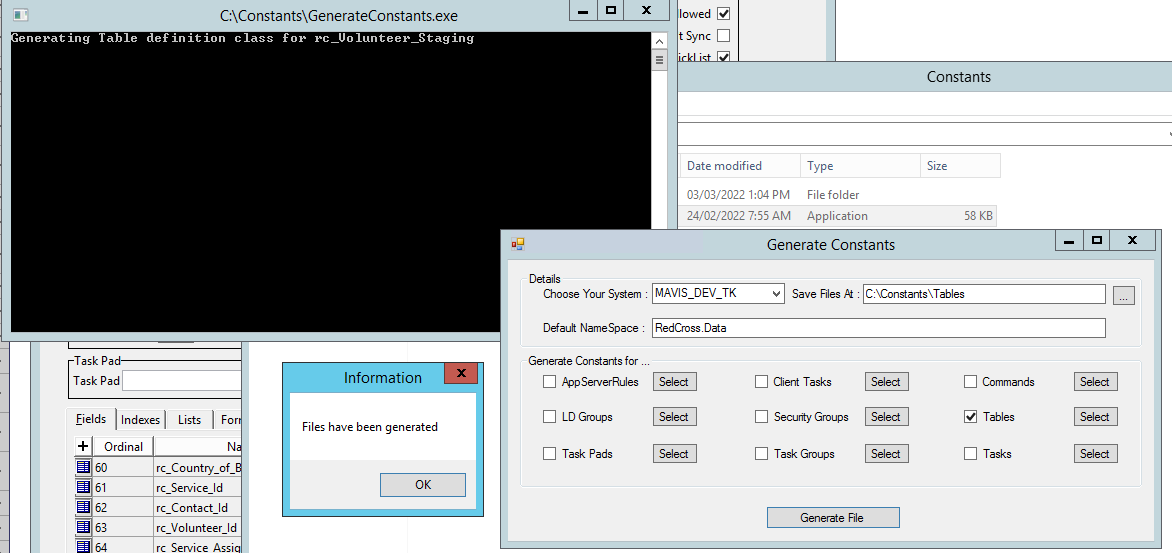
| Select tables, and click Generate File |
13 | Path: C\Constants\Tables\Tables
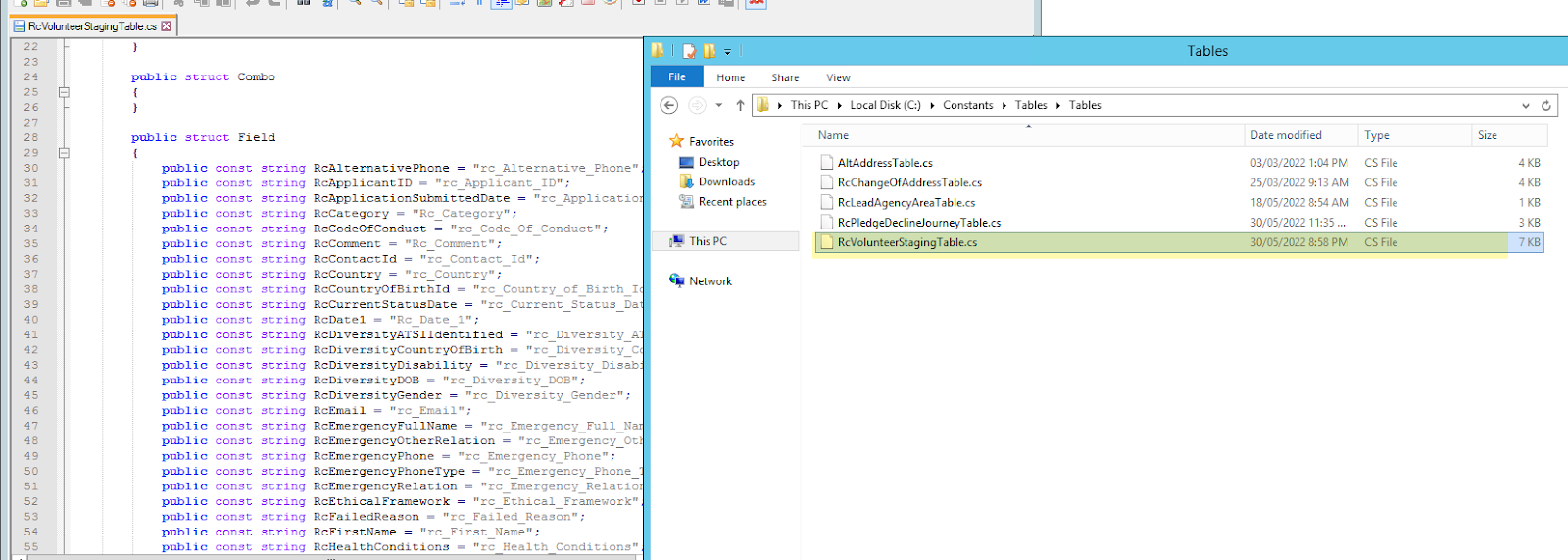
| Follow this path, we can see a file generate: RcVolunteerStagingTable.cs
This file will include all fields in the table |
14 | 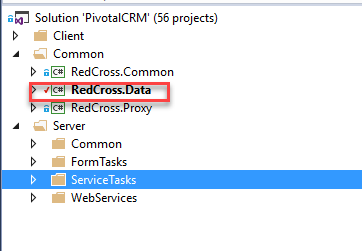
| Open solution PivotalCRM, and open RedCross.Data Project
|
15 | ![가 ddy¯
! .물u;콤•국S-
1N0
기1되凸
• 이훤•그!rd쏴꺼 믈바」
다가
0Ⅰfi] n!Ⅵ105
|1뙈• 세회리V.개 !
-회•1리• pd|계*회•罌개
” I ”p그까V.개 •1 !
~Ⅰ墮15 u며” •1 !
″리墮11″ I 매개 •1 !
″리墮1些 I 매개 •1 !
”회墮1~* I 매개 •1 ,
” I 매개 •1 !
u이|거뙤
그」
1″) 기tq蘭
. - 毳&』14 14″ 」&1력nd
• *」V 국 ″, 그!1되馝
十국출회 1” “15 ,1
기』믽! 」&1회馝
리삐우이그야*l!•.](https://lh5.googleusercontent.com/6fX1wqtqaxmr2iGDMSjcfP4zhegLrpDDFlrjojhEXwBsrnTortCurqwL0fklIbd_UvJ2UqEQPjLn6PhEpN78BvFQaZvB5ScWqRUKMLY3DvDdgedgcZd58v9qu47GLLJa0qUA86OpXfPwcZhpYW6jWqMETs6UlJ1NZlEDqRcRSq8NRbs5zgvY1Rw04pGaJRfC_6s1vA)
| Select the cs file with the file name same with your table name, Then insert new fields from the file generate by constant tool. |
16 | 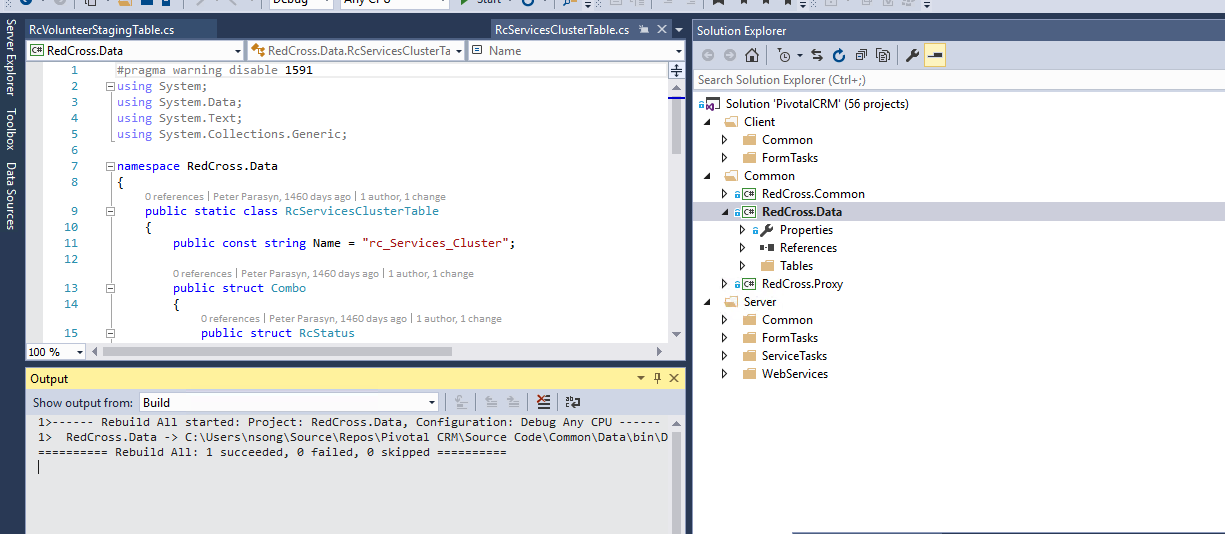
| Build RedCross.Data project and check new version of RedCross.Data.DLL and RedCross.Data.pdb |
17 | 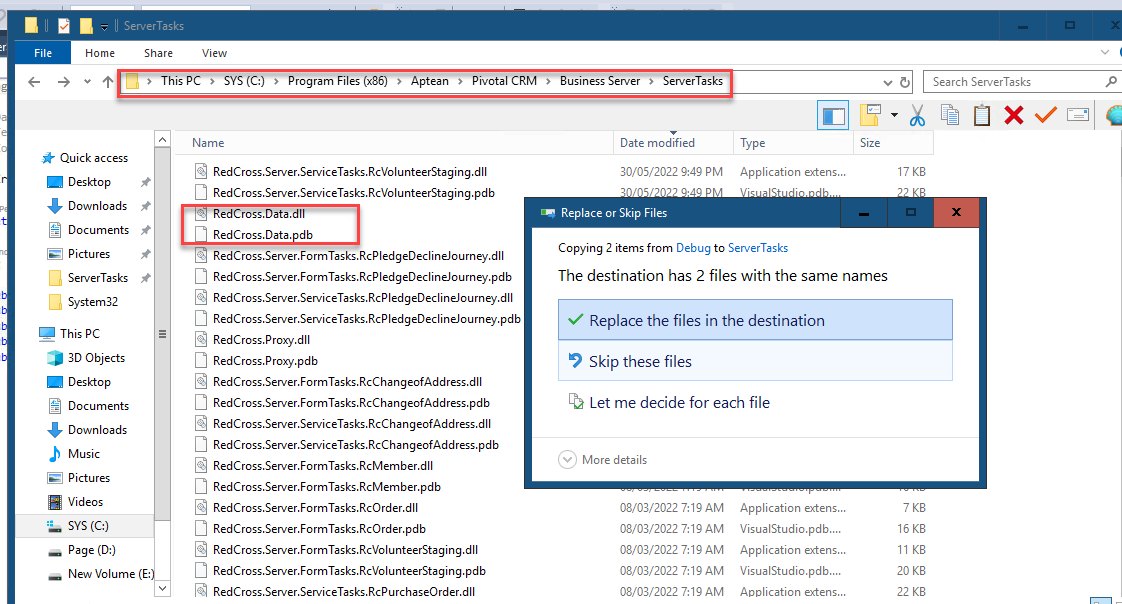
| Open Component Services and open Base Application Partition and right click to shut down Pivotal Business Server
|
18 |
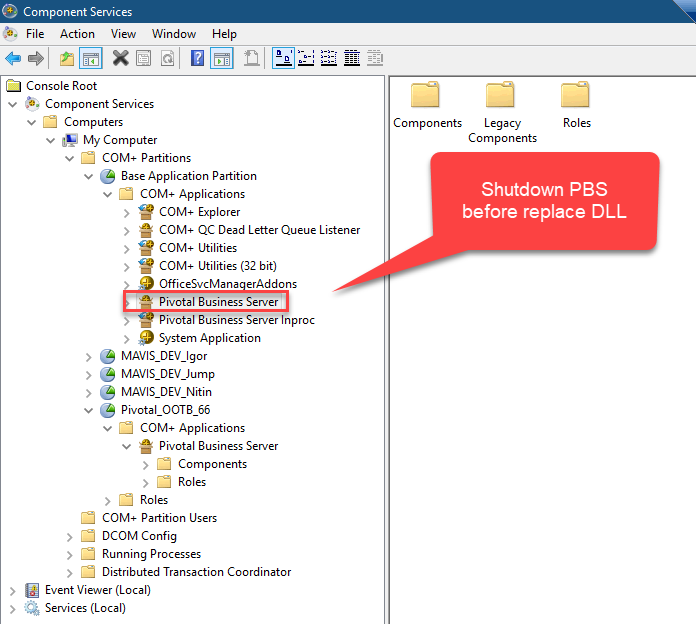
| Copy RedCross.Data.DLL and RedCross.Data.pdb to Service Tasks to apply new fields |
19 | 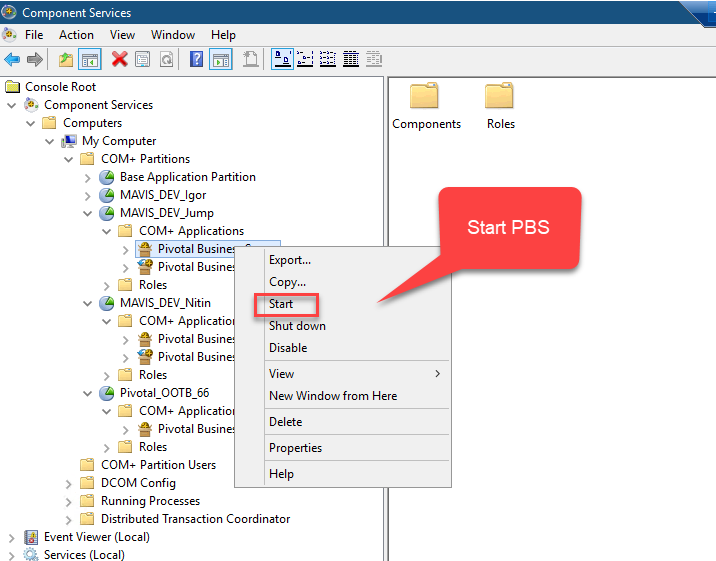
| Open Component Services and open Base Application Partition and right click to start Pivotal Business Server |
20 | 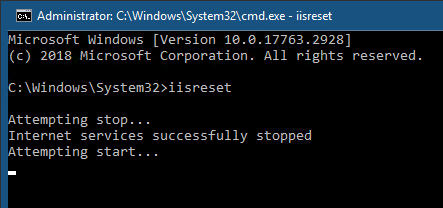
| Open CMD and run: IISRESET to restart Application Pool |
21 | 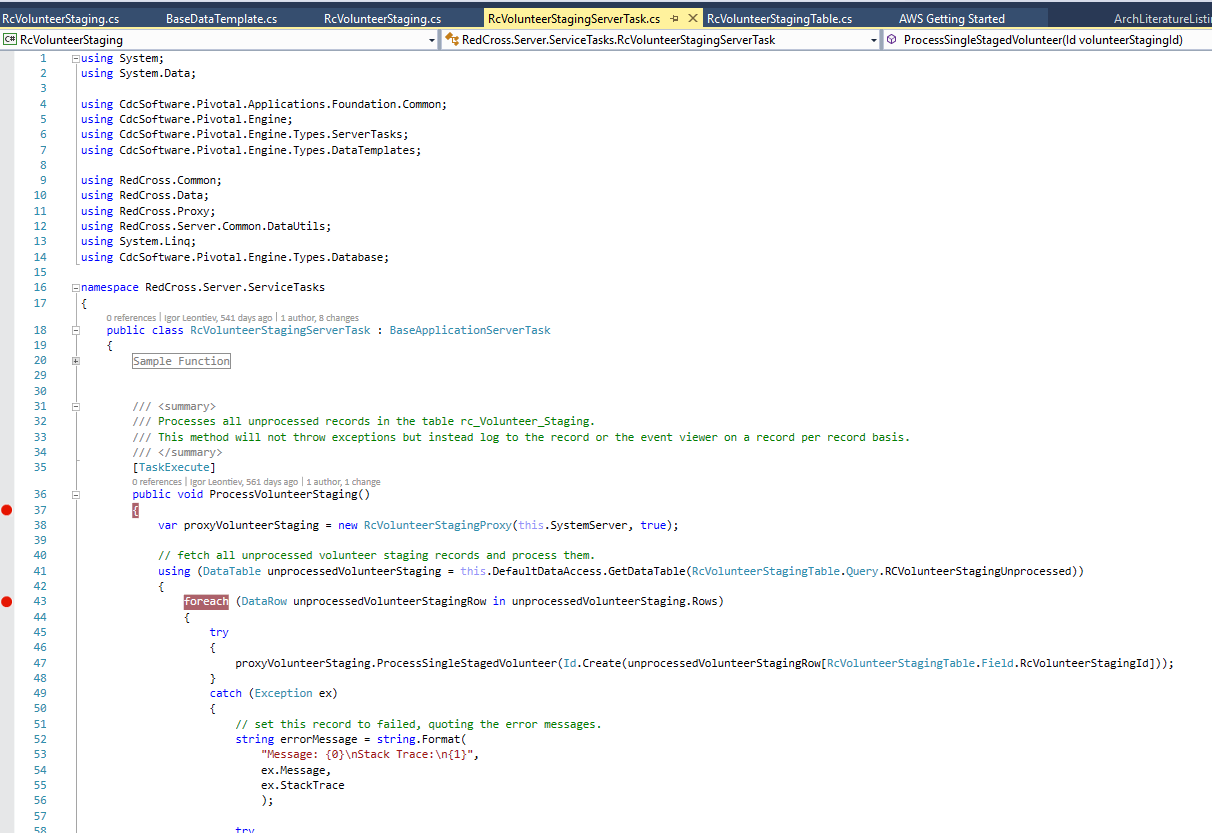
| We can debug Service Task to check the data in new fields |


0 Comments